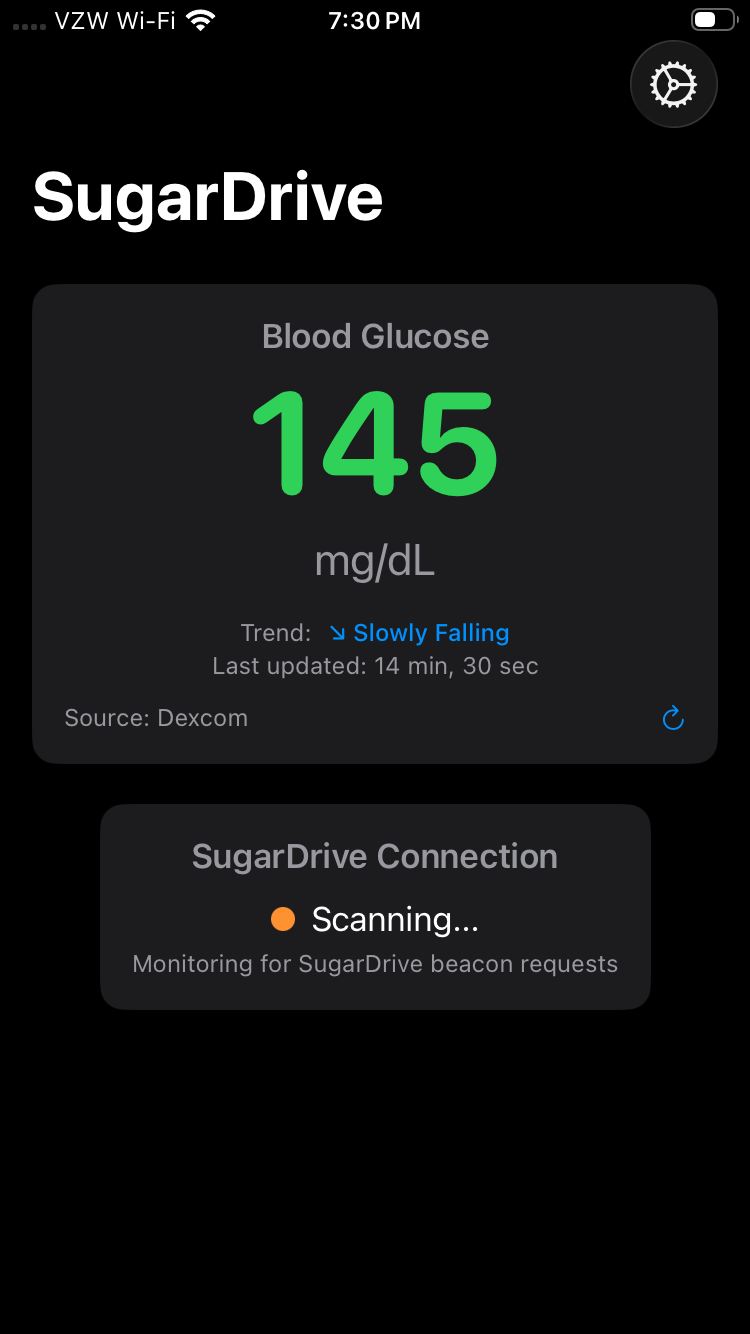
SugarDrive connects to your iPhone over Bluetooth Low Energy (BLE). The SugarDrive app runs on your iPhone, fetches glucose readings from Dexcom, and relays them to the SugarDrive display — no hotspot or second device needed.
Step 1: Verify Dexcom Sharing

SugarDrive requires a Dexcom Follow account with at least one follower enabled. See Username and Password for SugarDrive for instructions on verifying your credentials and setting up sharing.
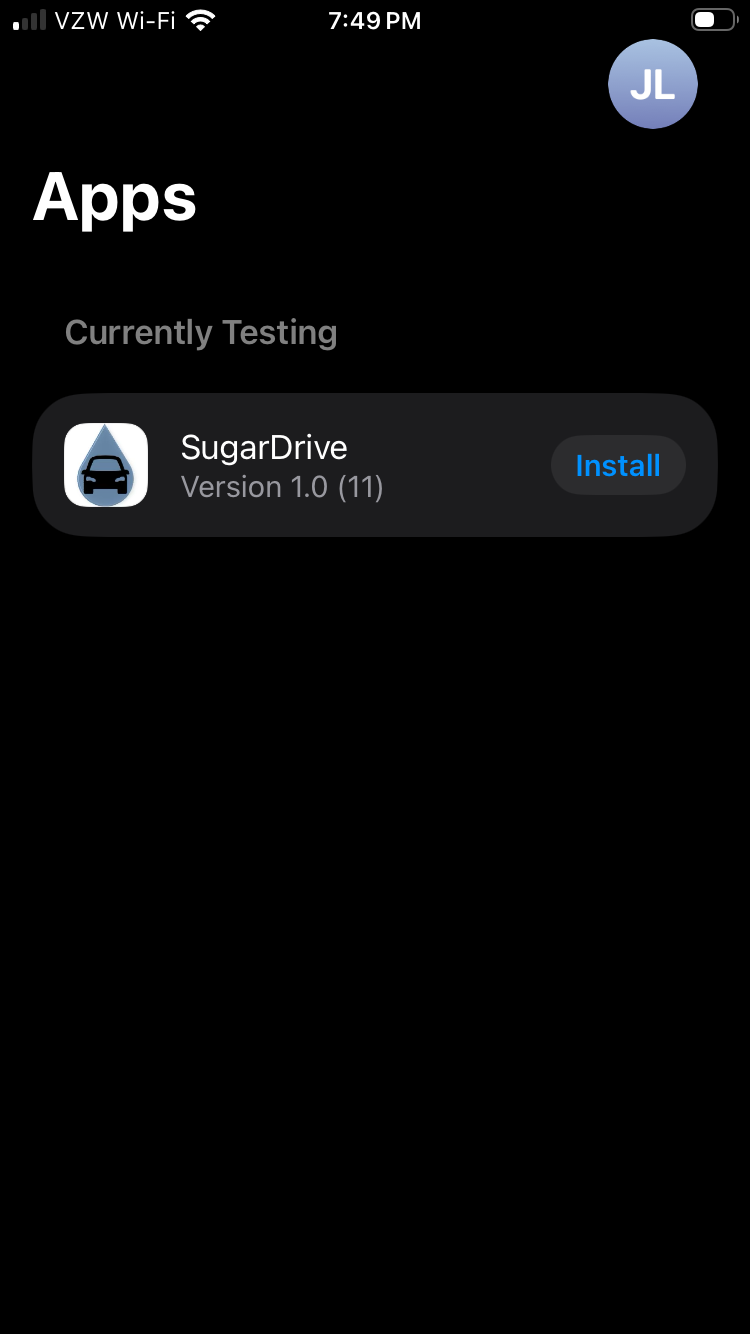
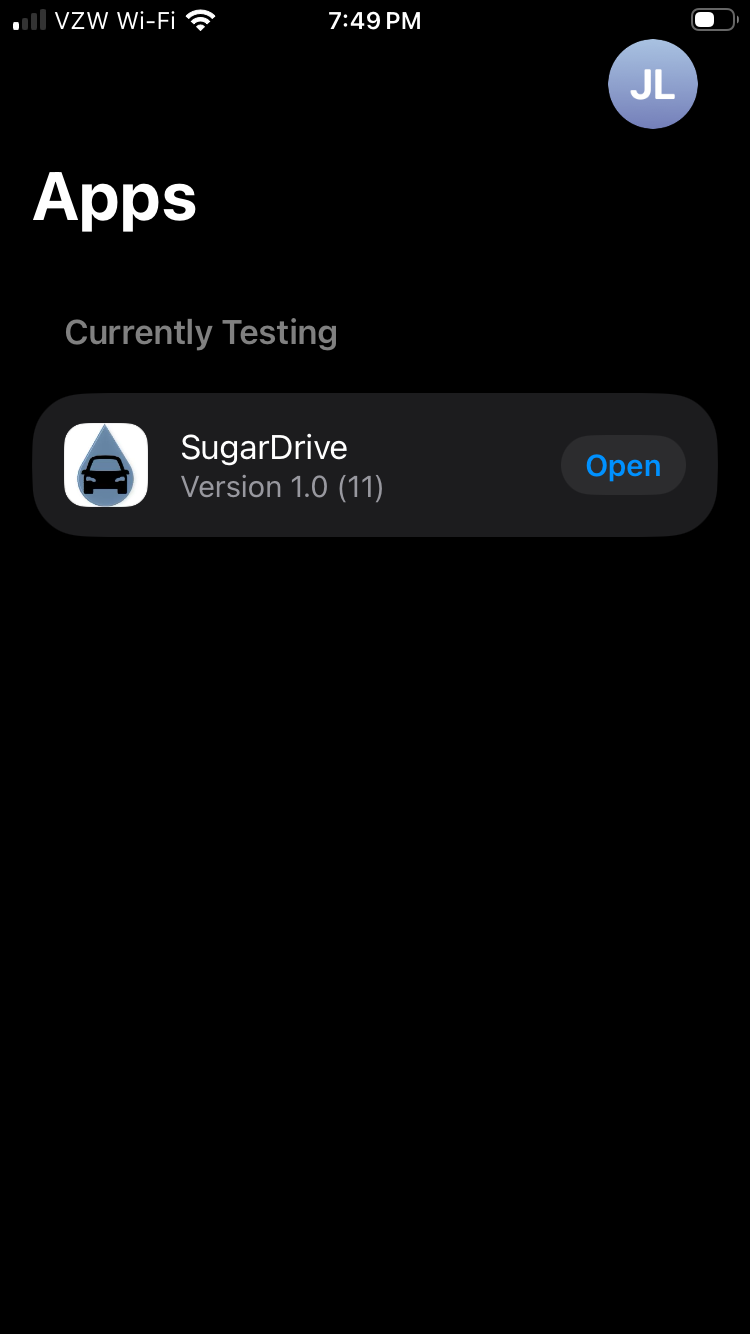
Step 2: Install the SugarDrive App
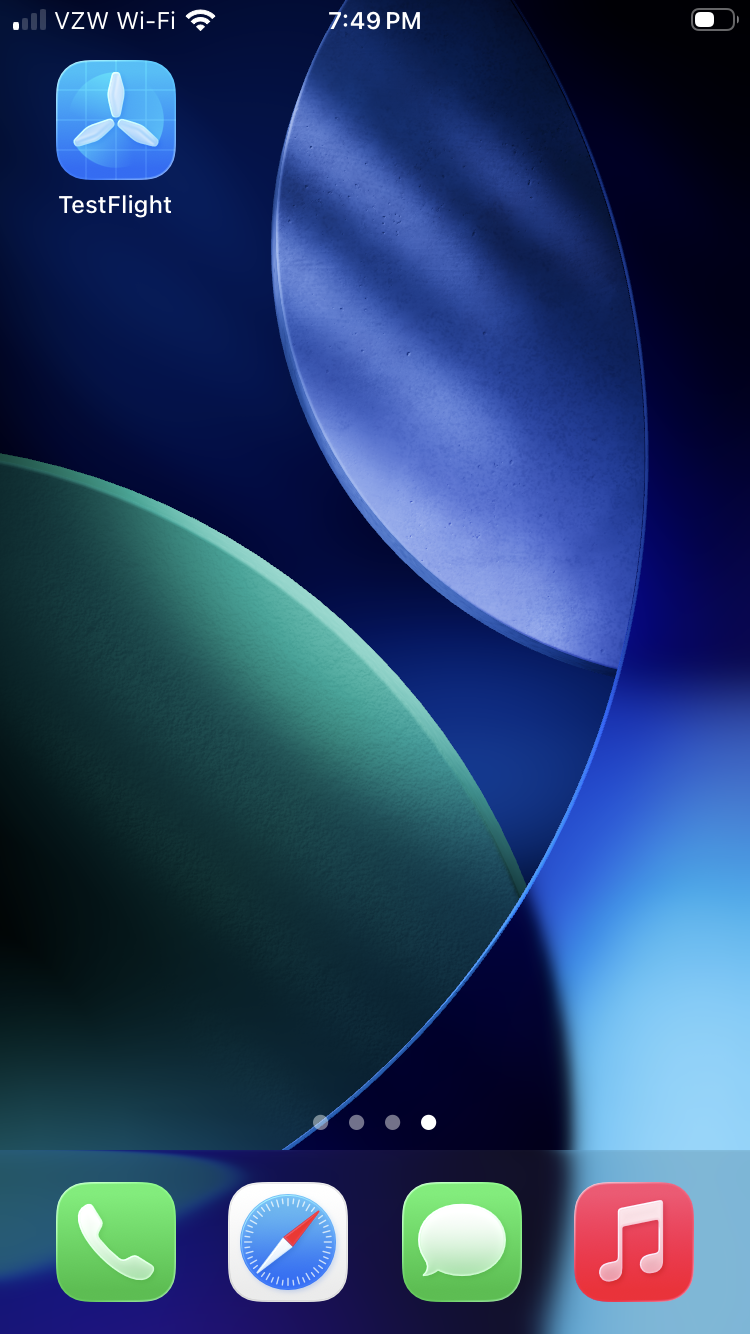
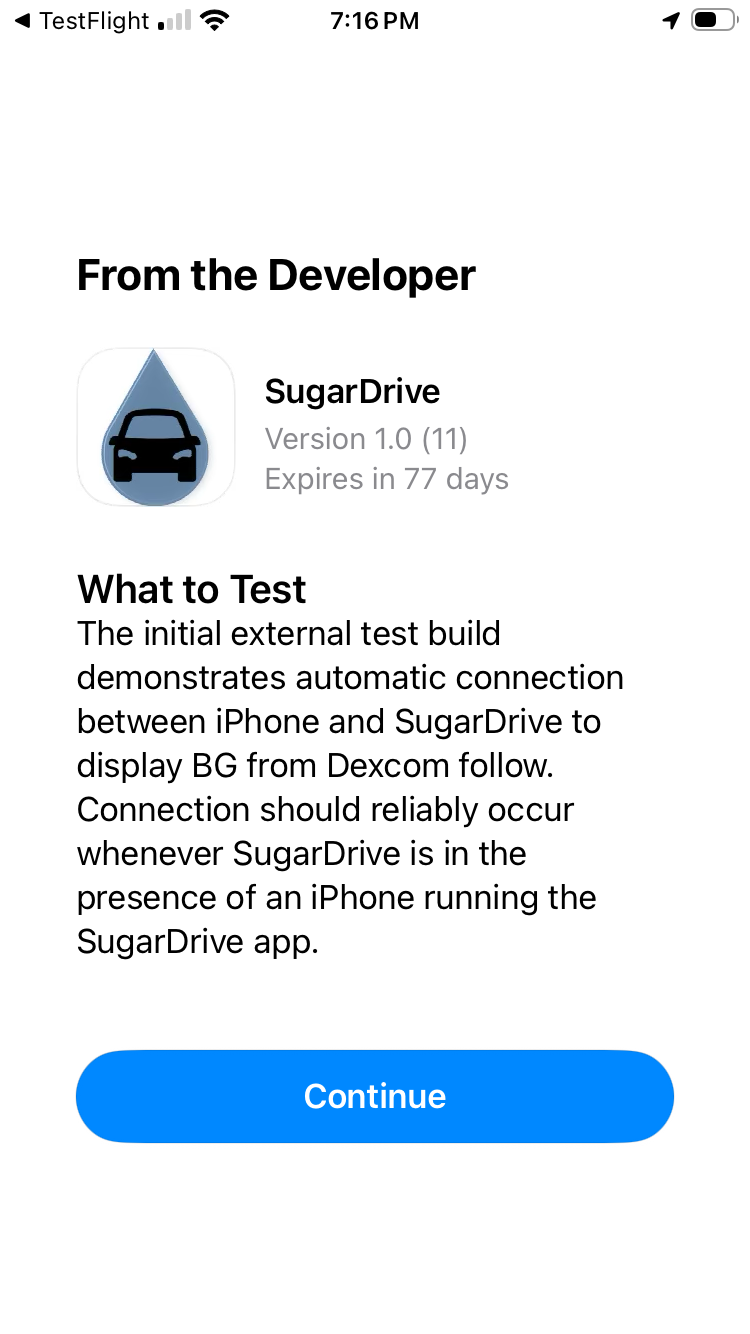
SugarDrive is currently available through TestFlight. You will need the TestFlight app installed on your iPhone before installing SugarDrive.
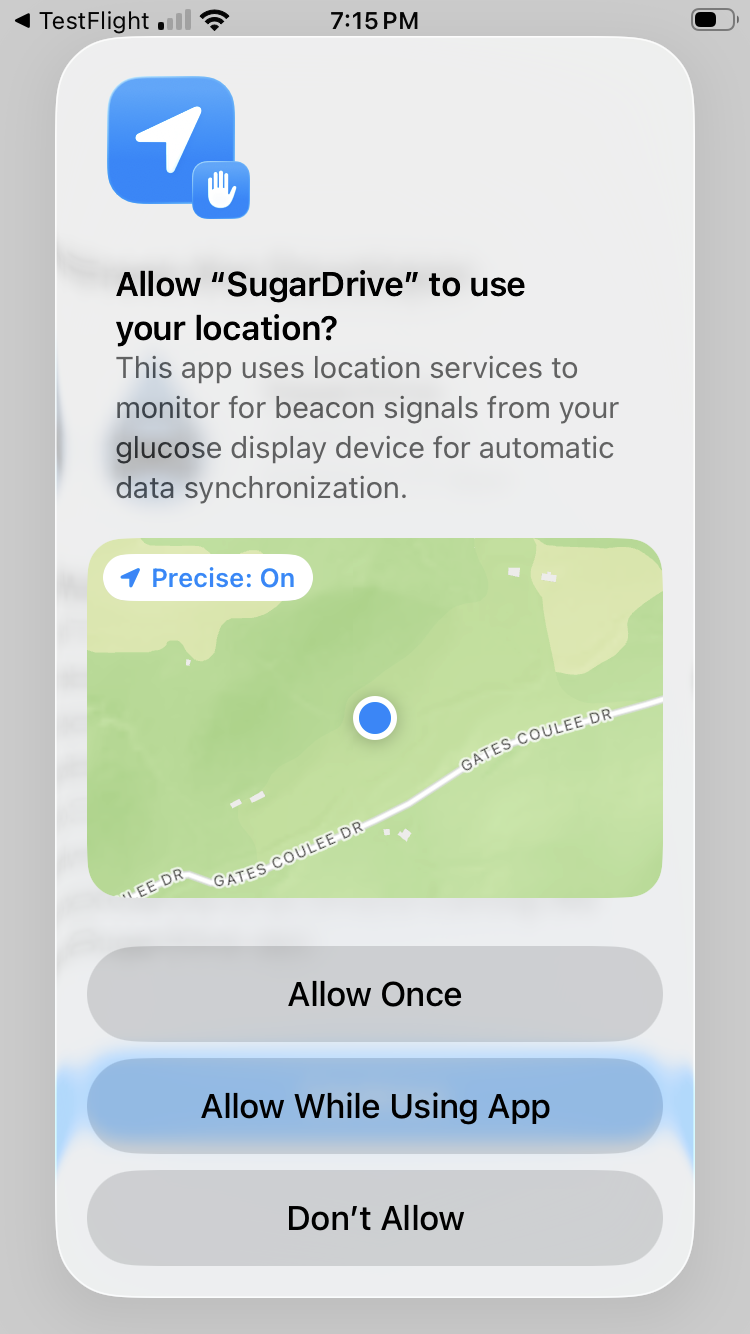
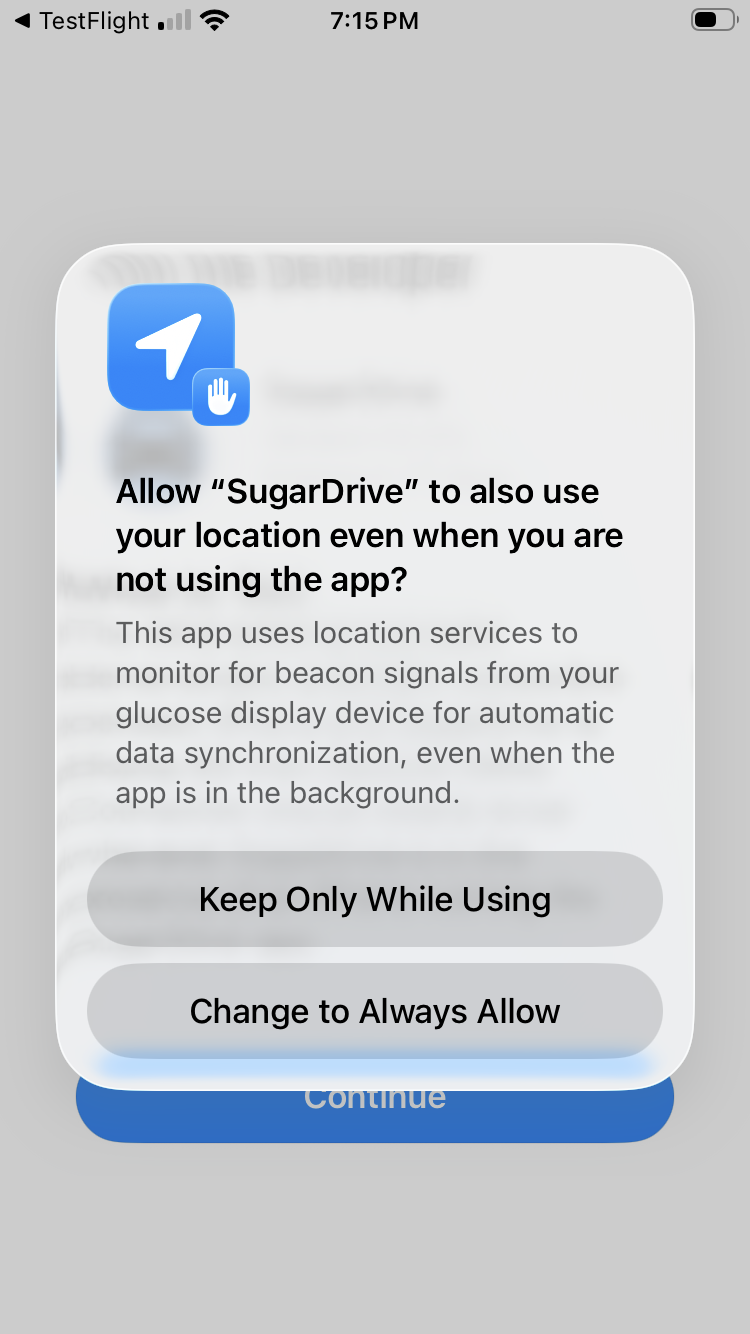
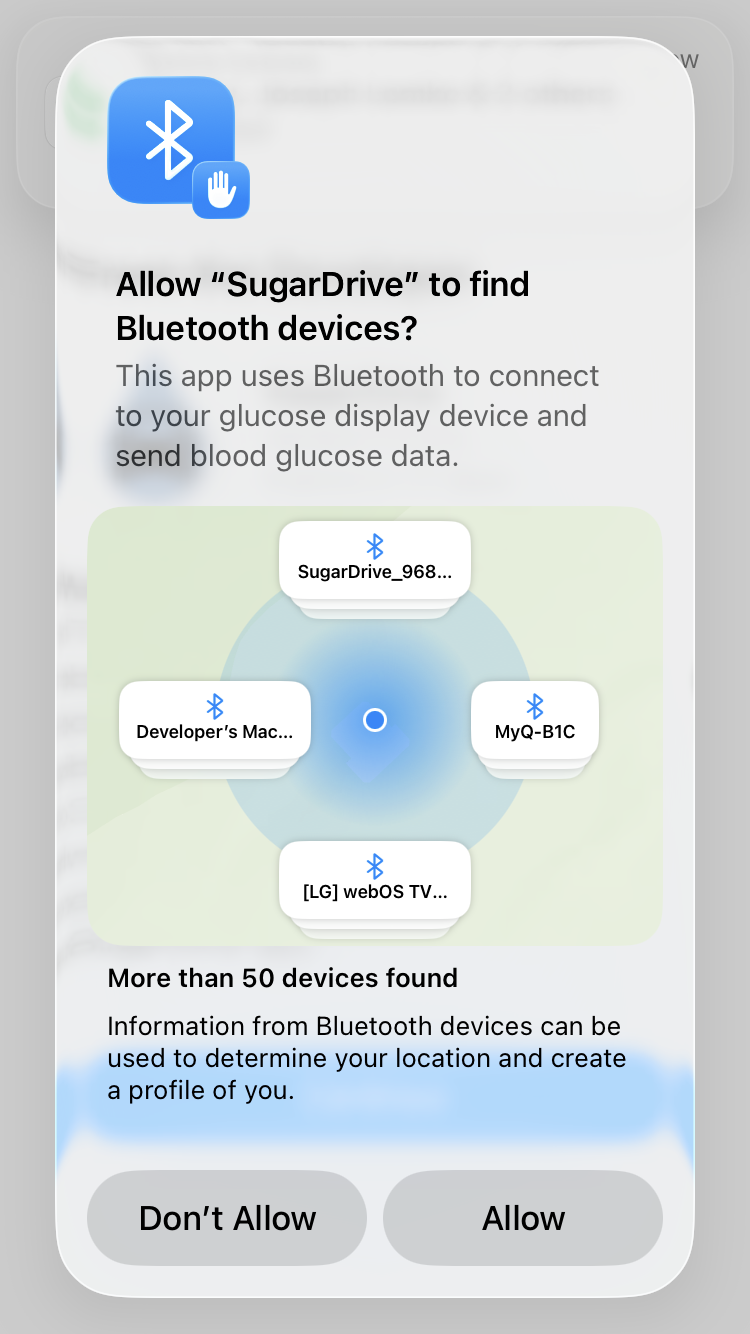
Step 3: Grant Required Permissions
SugarDrive requires Location and Bluetooth permissions to communicate with the display and fetch glucose data while running in the background.
Step 4: Complete Initial Setup
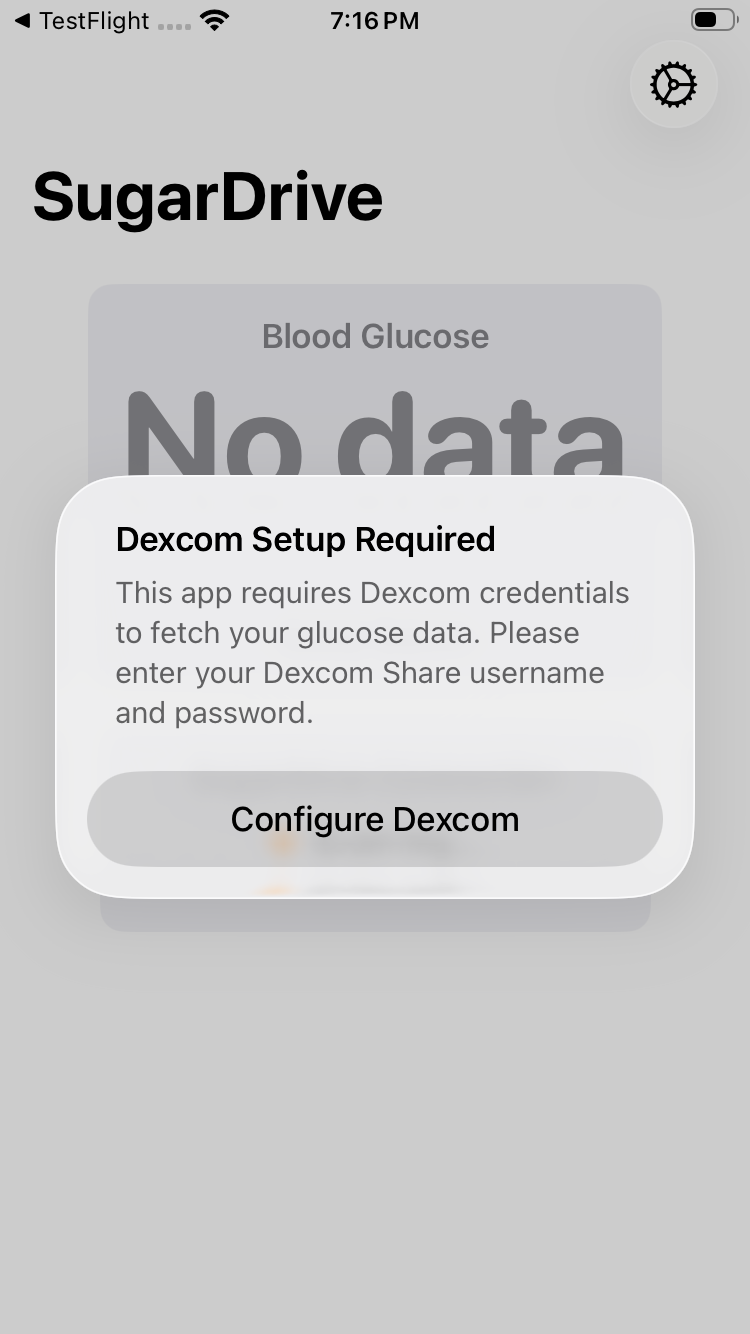
Step 5: Connect Dexcom Follow
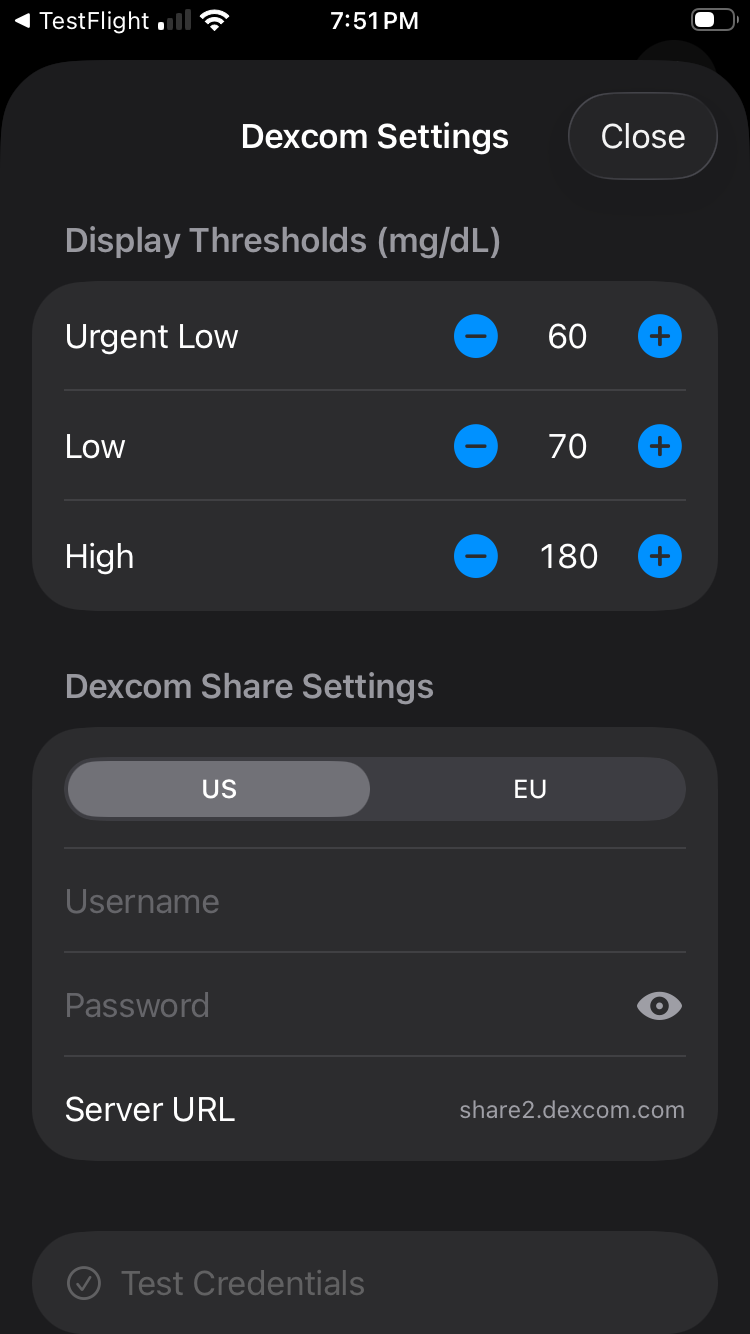
Step 6: Verify Glucose Data is Displaying
Once credentials are saved, SugarDrive will begin fetching glucose readings. Power on the SugarDrive display — it will connect to your iPhone automatically over BLE and begin showing live BG data.