SugarDrive Setup Instructions

SugarDrive connects to your iPhone over Bluetooth Low Energy (BLE). The SugarDrive app runs on your iPhone, fetches glucose readings from Dexcom, and relays them to the SugarDrive display — no hotspot or second device needed.

Step 1: Verify Dexcom Sharing

Dexcom Share Symbol

SugarDrive requires a Dexcom Follow account with at least one follower enabled. See Username and Password for SugarDrive for instructions on verifying your credentials and setting up sharing.

Step 2: Install the SugarDrive App

SugarDrive is currently available through TestFlight. You will need the TestFlight app installed on your iPhone before installing SugarDrive.
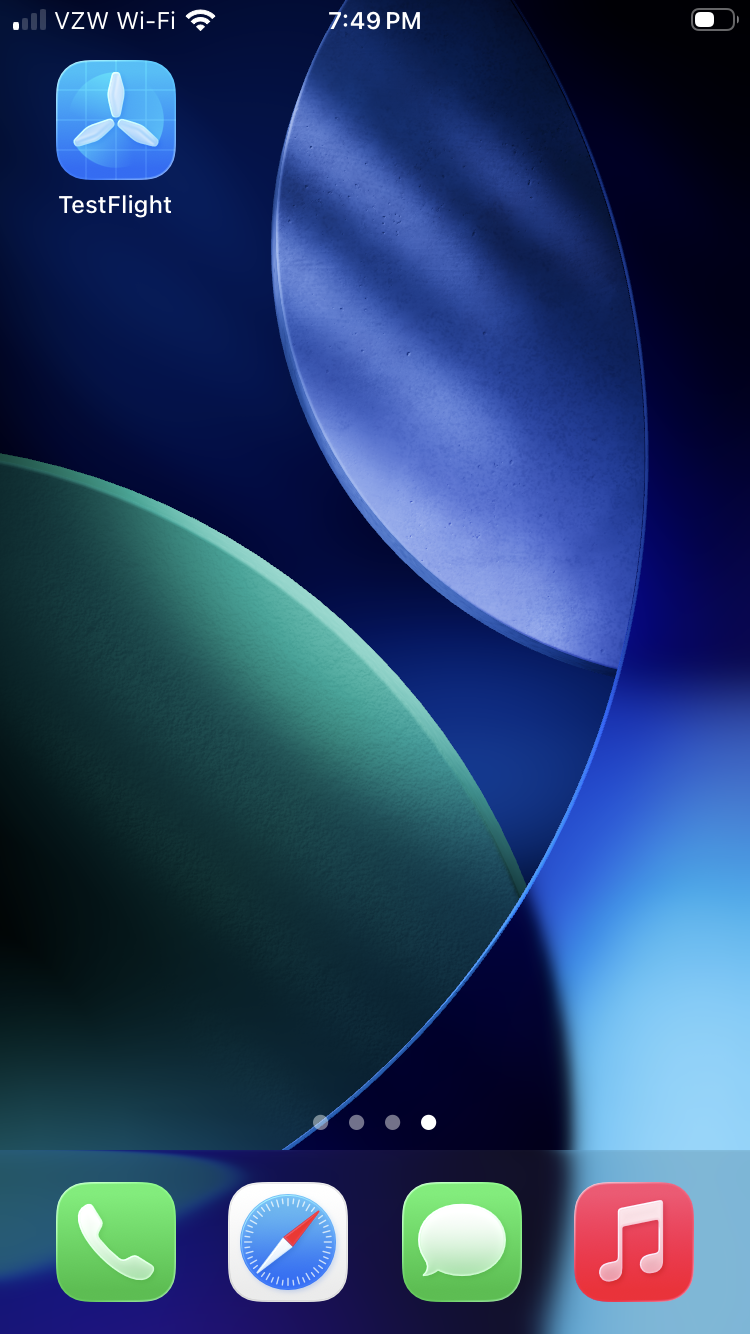
Open TestFlight on your iPhone →
TestFlight icon
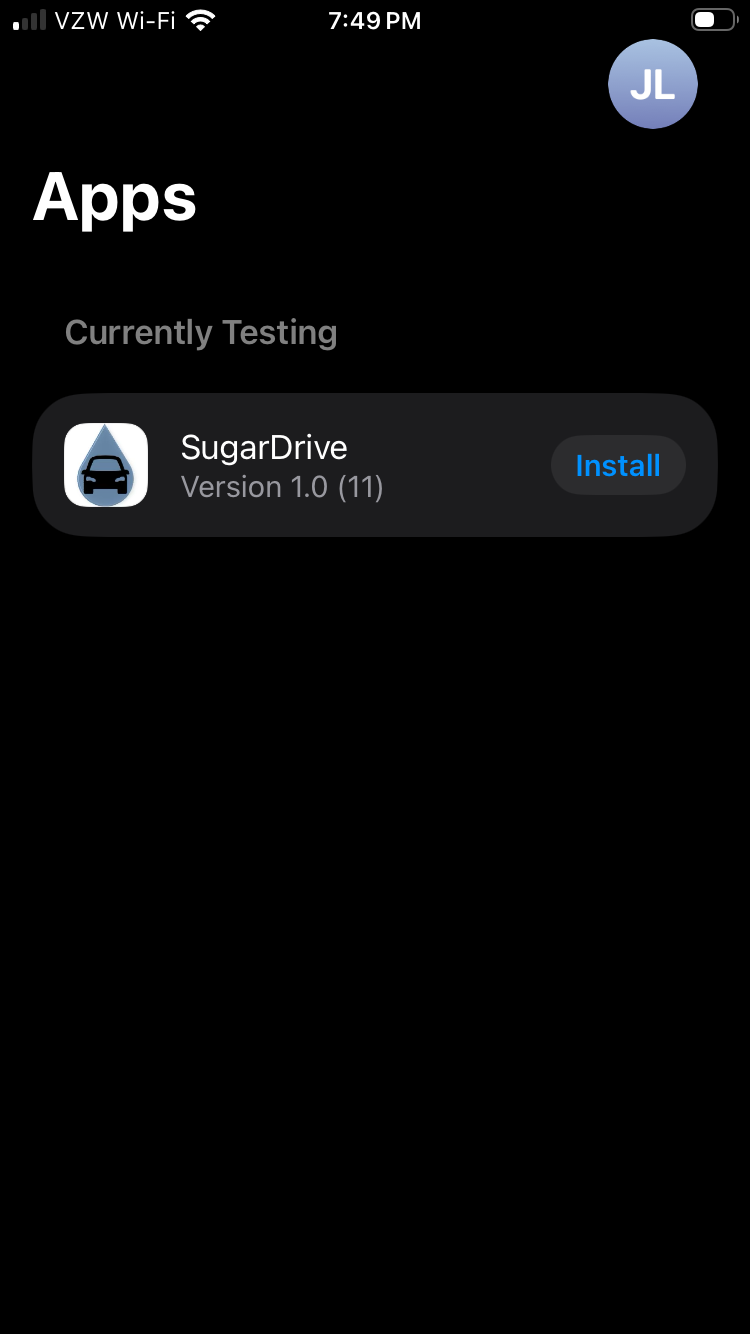
Find SugarDrive in your TestFlight invitations and tap ‘Install’ →
SugarDrive Install listing in TestFlight
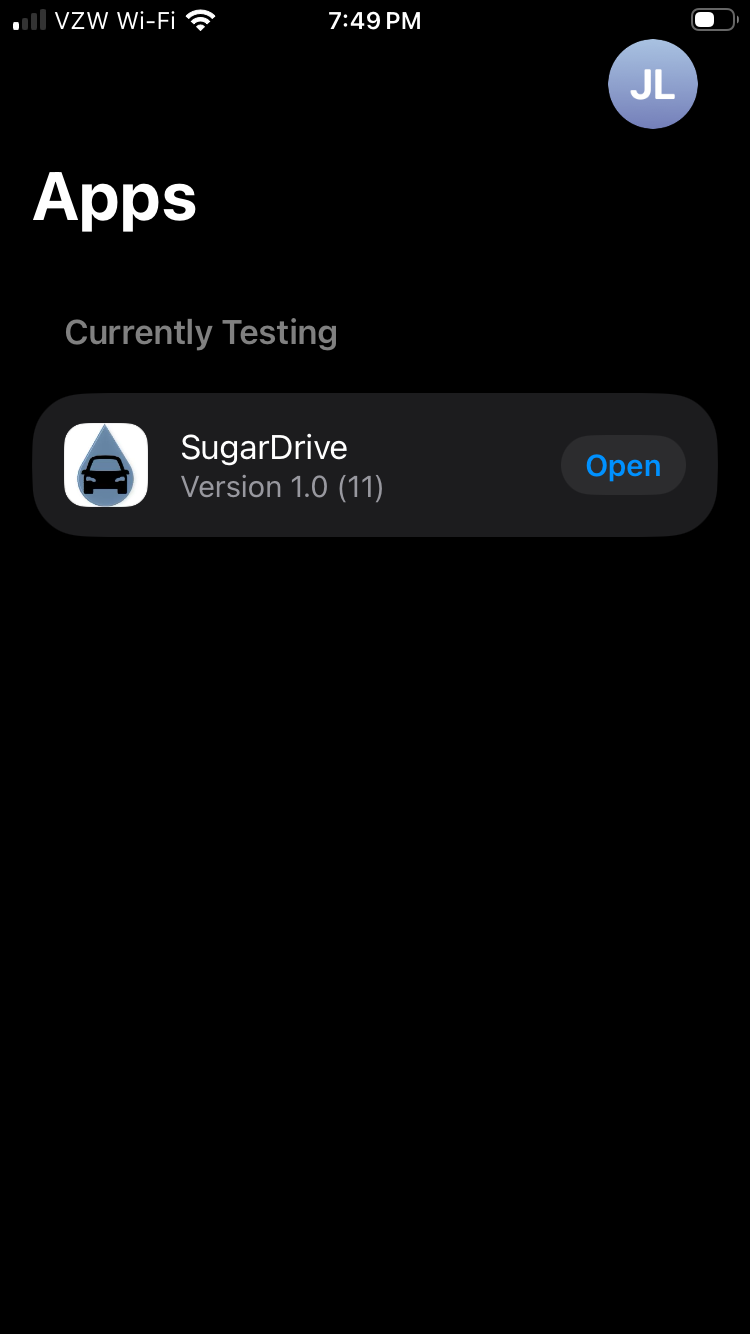
After installation tap ‘Open’ to launch SugarDrive →
SugarDrive Open listing in TestFlight after install

Step 3: Grant Required Permissions

SugarDrive requires Location and Bluetooth permissions to communicate with the display and fetch glucose data while running in the background.
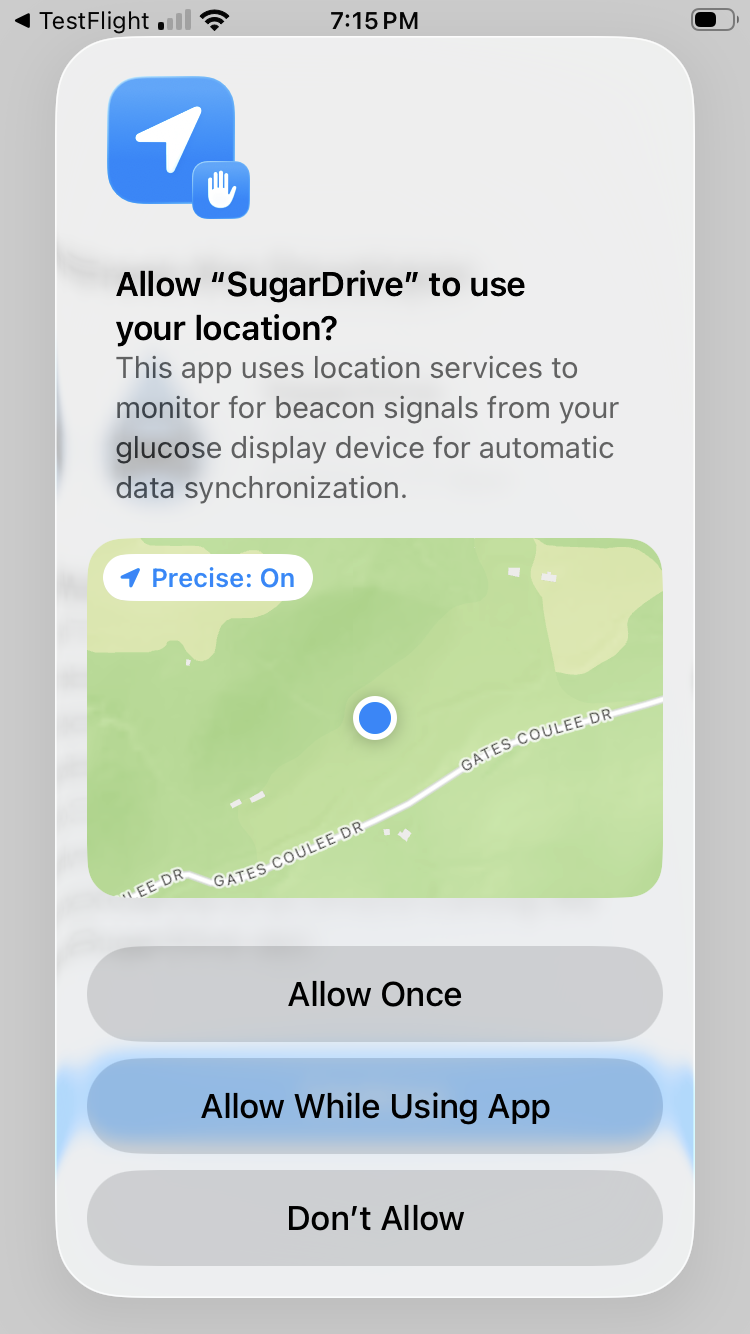
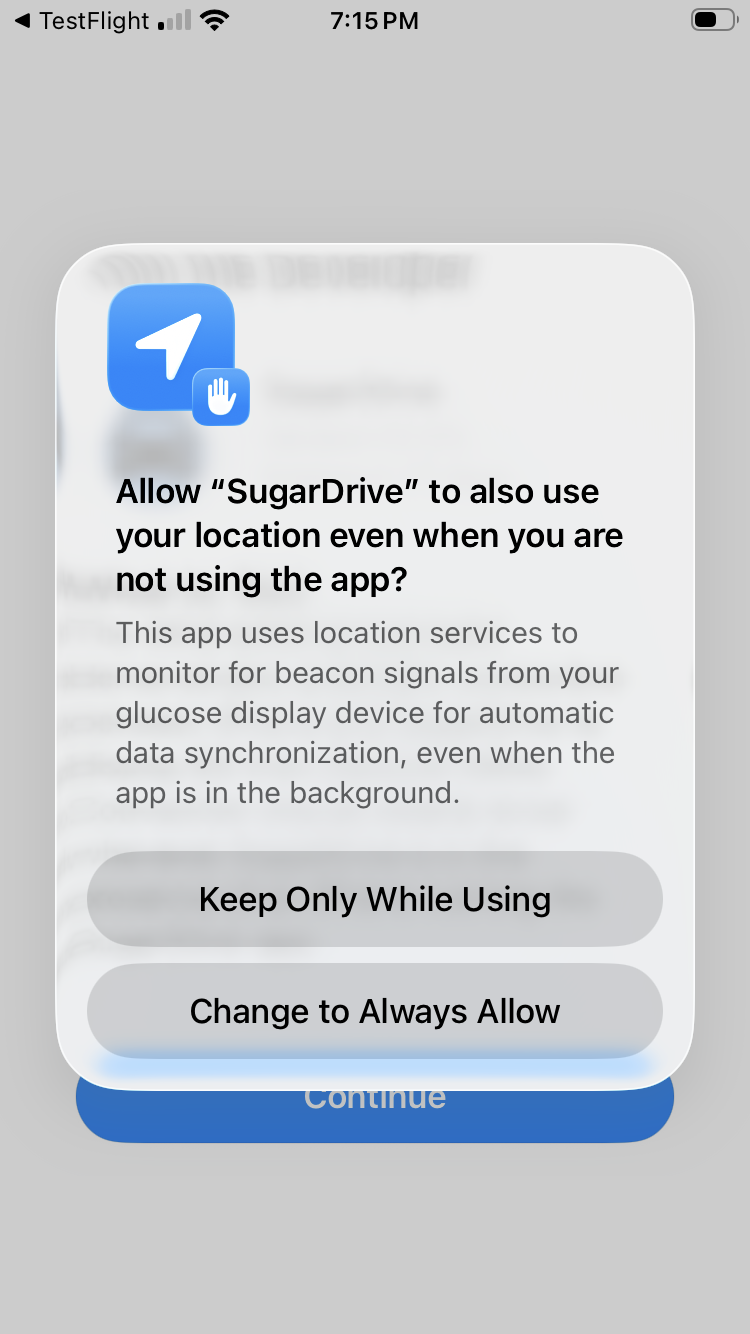
Tap ‘Allow While Using App’ to grant location access →
Allow While Using App prompt
Tap ‘Change to Always Allow’ so SugarDrive can update your display in the background →
Change to Always Allow location prompt
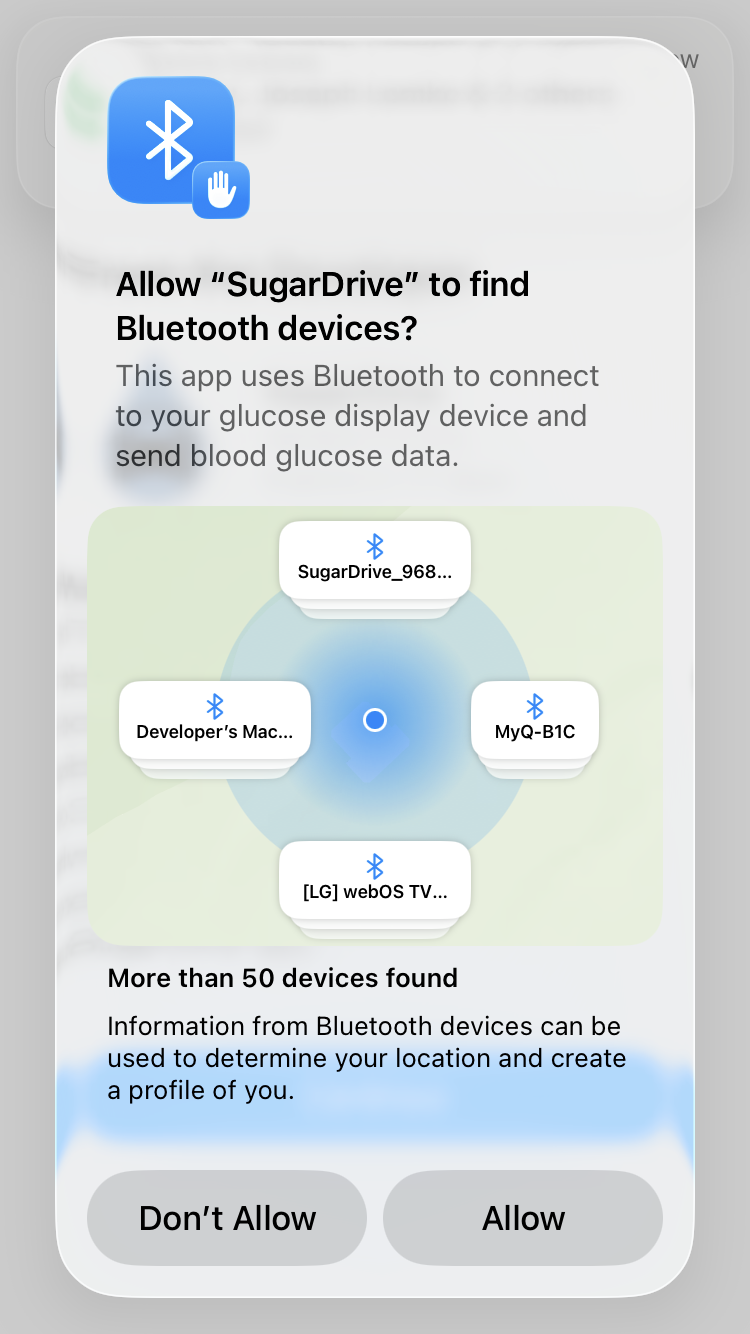
Tap ‘Allow’ to grant Bluetooth access so SugarDrive can connect to the display →
Allow Bluetooth prompt

Step 4: Complete Initial Setup

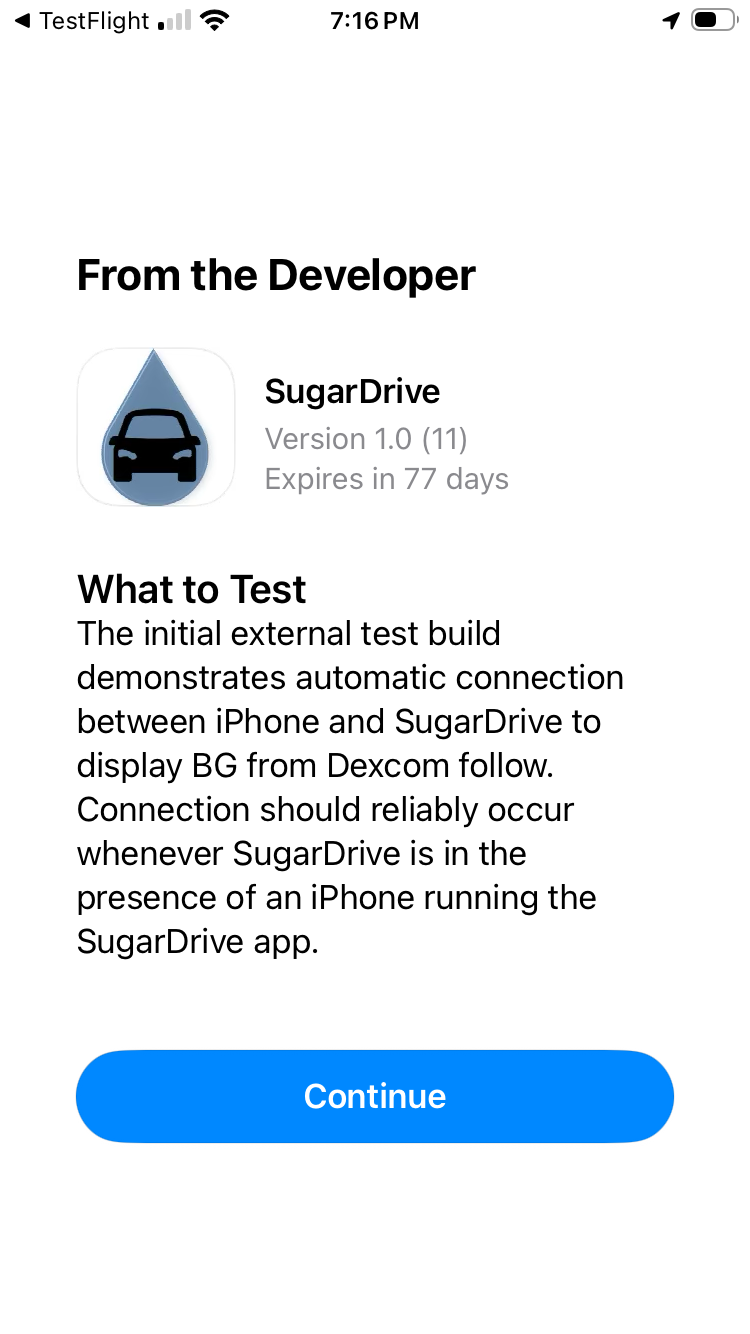
Tap ‘Continue’ to proceed to the main setup screen →
SugarDrive Continue screen
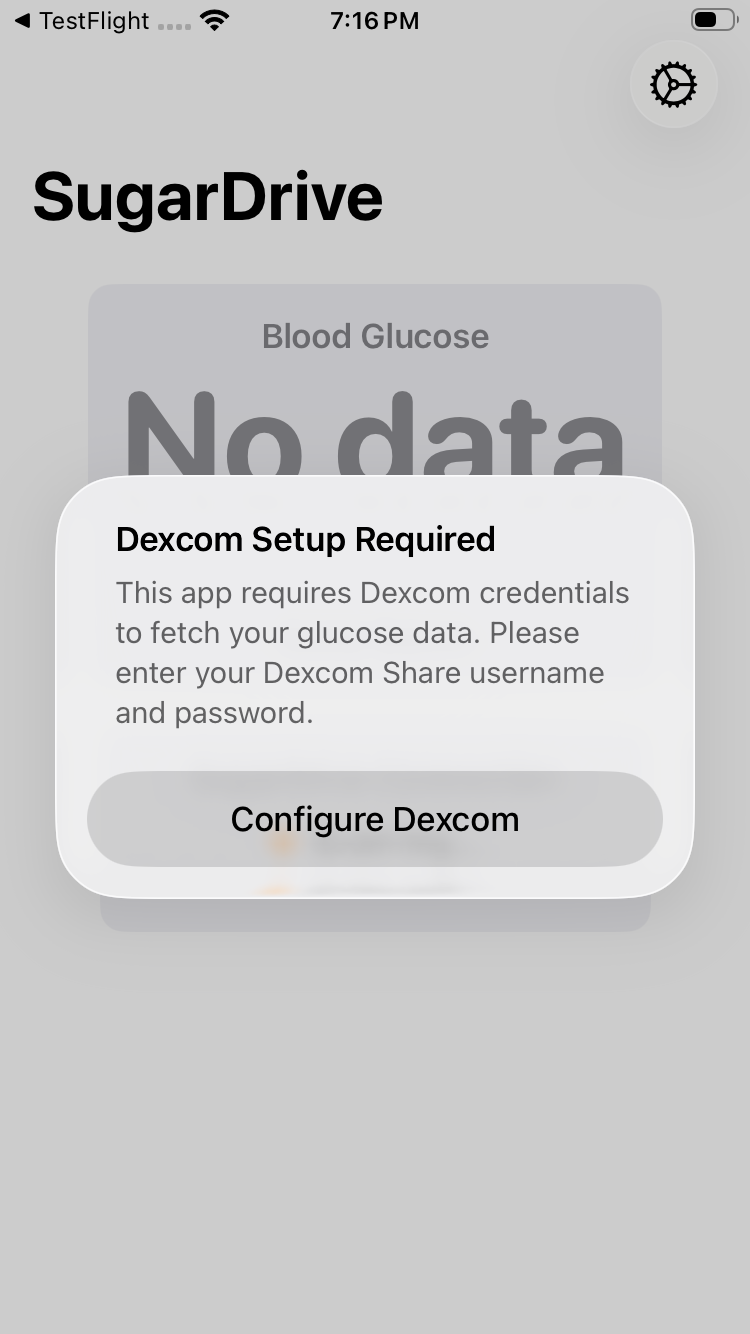
Tap ‘Configure Dexcom’ to enter your Dexcom credentials →
Configure Dexcom button

Step 5: Connect Dexcom Follow

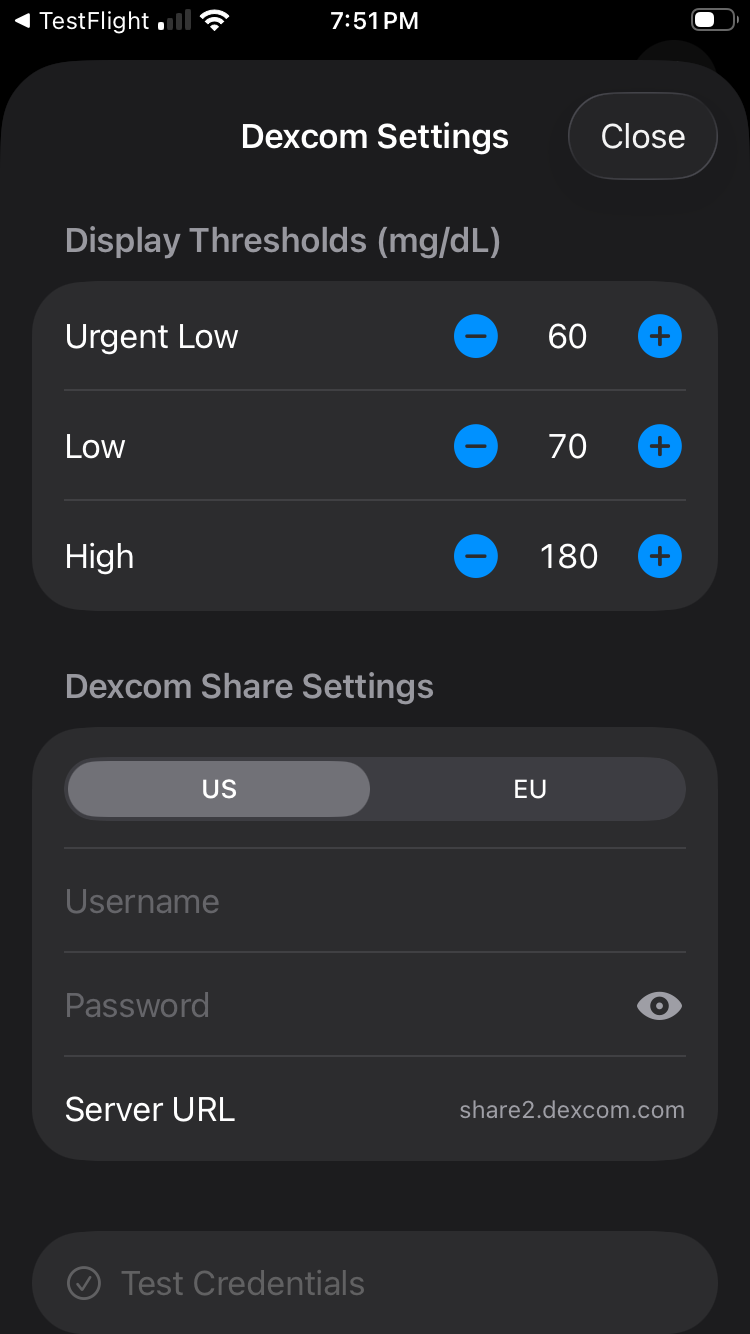
Enter your Dexcom Follow username and password then tap ‘Test Credentials’ to verify. Color change thresholds can also be adjusted on this screen.
Enter Dexcom Follow credentials and test

Step 6: Verify Glucose Data is Displaying

Once credentials are saved, SugarDrive will begin fetching glucose readings. Power on the SugarDrive display — it will connect to your iPhone automatically over BLE and begin showing live BG data.
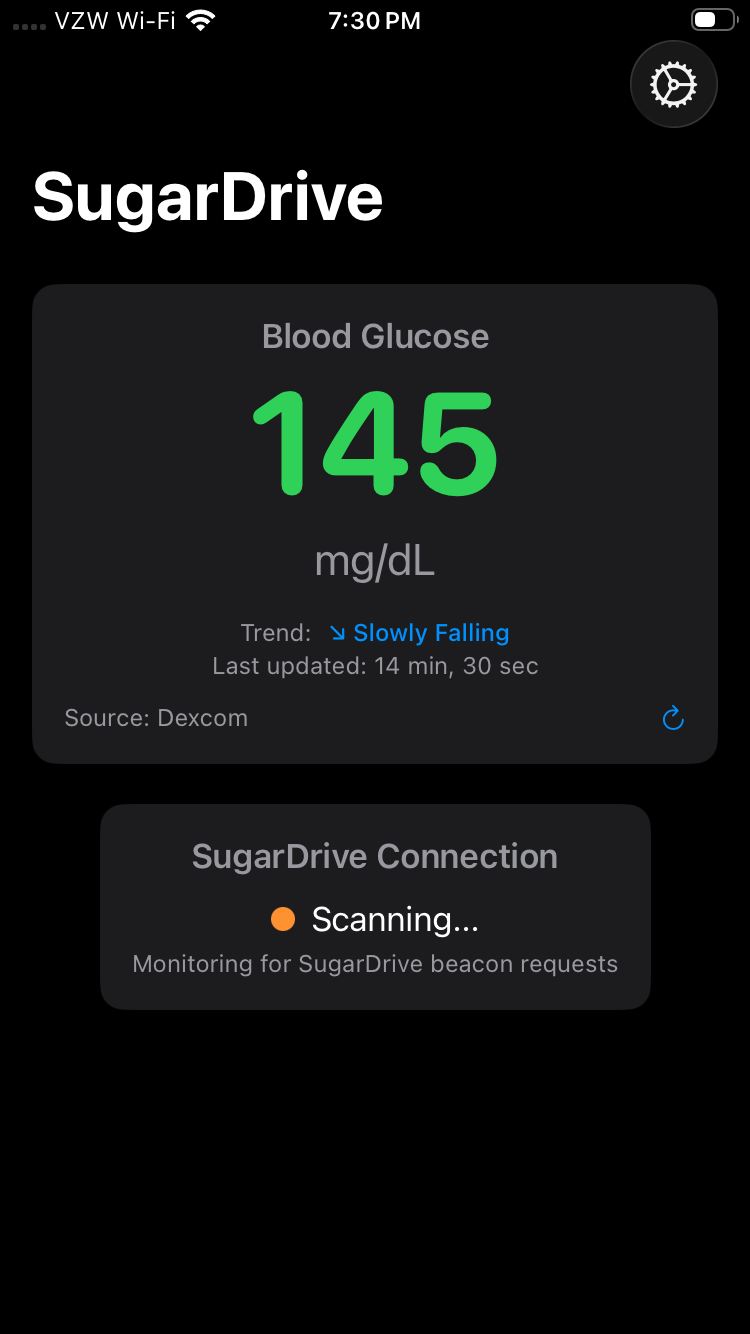
The SugarDrive app’s main screen will show the last fetched BG reading once everything is configured
Configured SugarDrive main screen with BG reading